Guide
How to Add Page Numbers to a PDF: Page X of Y, Any Start Number
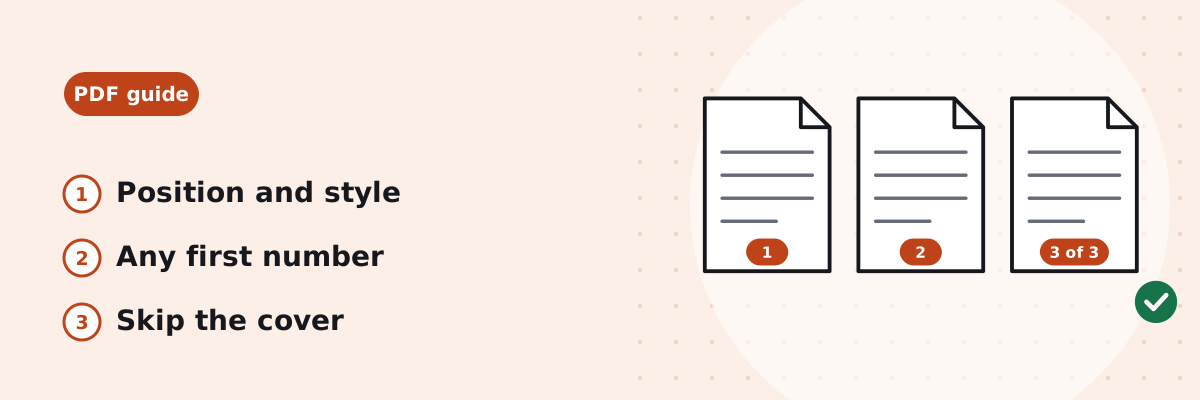
A thesis, a contract or a file merged from several documents needs page numbers that run through the whole thing. If the source documents are gone, or the file is a scan, the numbers have to go onto the PDF itself. This guide shows how, what the options mean, and what happened in our test.
Published
Position, style, first number, size and margin
- Position: Bottom centre, Bottom right, Bottom left, Top centre, Top right or Top left.
- Style: 1, 2, 3; Page 1, Page 2; Page 1 of 12; or 1 / 12, where 12 is the number on the last page.
- First page gets number: 0 to 9999, usually 1. Numbers run in file order: the first page of the file gets this number, and the total in “of 12” is counted from it.
- Text size: 6 to 36 pt; 11 pt by default, which matches most body text.
- Distance from edge: Small (about 6 mm), Normal (about 10 mm) or Large (about 15 mm).
The preview under the settings shows roughly where the number will sit on a page. If the page already has a number in the same spot, the new one is printed over it; choose another position or margin in that case.
How to number a PDF in your browser
- Open Add Page Numbers and choose the PDF, up to 200 MB.
- Pick the position and the style.
- Change First page gets number, Text size and Distance from edge if the defaults do not suit.
- Click Add page numbers. The result says what the first and last pages read, for example “Page 1 of 12” and “Page 12 of 12”. Download the file; it is named like the original with “-numbered” added.
Pages that are rotated get their number rotated to match, so it still sits at the bottom as you read the page. Password-protected PDFs need to be unlocked first.
Keeping a cover page unnumbered, or continuing from another document
The tool numbers every page of the file it is given. To leave a cover unnumbered, or to start a chapter at 37 because it follows another file:
- Use Split PDF to take the cover (page 1) into one file and the rest into another.
- Number the second file, setting First page gets number to 2 (or to 37 for the chapter).
- Use Merge PDF to put the cover back in front.
Combining several documents first? Merge them, then number the merged file, so the numbering runs through from the first page to the last.
What happened in our test
This is one test on 20 October 2026, run with the tool’s own code on a 12-page A4 report of 11,391 bytes:
| Settings | Result |
|---|---|
| Defaults: bottom centre, style 1, 2, 3, first number 1, 11 pt, Normal | First page reads “1”, last page “12”; the file is called report-numbered.pdf and is 13,684 bytes, 2,293 bytes more than before. |
| Style Page 1 of 12, first number 3 | First page reads “Page 3 of 14”, last page “Page 14 of 14”. |
| Pages rotated by 0°, 90°, 180° and 270°, style Page 1 of 4 | On every page the number sits near the bottom edge as displayed, centred, and reads the right way up. |
| Top right, first number 7, on a page rotated 90° | The number sits in the top-right corner of the page as displayed. |
The file grows by a few kilobytes because the numbers are added as text with a font reference, not as pictures. The existing text on each page is untouched.
If you still have the original document
Numbers added in the editor move with the text, so add them there and export to PDF. In Word, choose Insert › Page Number and pick a position1. In Google Docs, choose Insert › Page elements › Page number, with More options for the alignment and the pages it applies to2. Then export the PDF, or use Word to PDF.
Common questions
Can the first page get a number other than 1?
Yes: set First page gets number to any whole number from 0 to 9999. The “of” total follows it, so a 12-page file starting at 3 ends at Page 14 of 14.
How do I skip the cover page?
Split the cover off, number the rest starting at 2, then merge the cover back in front. The tool itself numbers every page it is given.
Will the numbers print, and can I search for them?
Yes. They are real text in Helvetica, a standard PDF font, in dark grey, so they print like the rest of the page and a viewer’s search finds them.
Can I use Roman numerals or letters?
No. The four styles are 1, 2, 3; Page 1, Page 2; Page 1 of 12; and 1 / 12. For i, ii, iii on front matter, add the numbers in your word processor before exporting.
Can I remove page numbers that are already in the PDF?
Not with this tool, which only adds text. Cover the old numbers by placing the new ones elsewhere, or edit the source document and export it again.
Sources
- Microsoft Support: Insert page numbers in Word — Insert › Page Number, then choose a position.
- Google Docs Editors Help: Use headers, footers, page numbers & footnotes — Insert › Page elements › Page number; More options for alignment and which pages are numbered.