Guide
How to Convert a PDF to JPG (or PNG) Without Blurry Text
Converting a PDF to JPG takes a picture of each page. Whether the result looks sharp or blurry depends mostly on two choices: the resolution and the format. This guide explains both with measured examples, and shows how to convert only the pages you need.
Published
Resolution: how many pixels each page gets
DPI (dots per inch) sets how many pixels each inch of the page becomes. Higher DPI means sharper images and bigger files. The tool shows the pixel size of page 1 before you convert.
| Resolution | A4 page becomes | Good for |
|---|---|---|
| Screen · 72 DPI | 595 × 841 pixels | Quick previews; small text can be hard to read |
| Standard · 150 DPI | 1,240 × 1,753 pixels | Sharing in chats, slides, most upload forms |
| Print · 300 DPI | 2,480 × 3,507 pixels | Printing, and zooming in on fine detail |
JPG or PNG: what we measured
On 1 October 2026 we converted page 1 of a 10-page A4 text document with 10 pt body text, in desktop Chromium, at each setting:
| Setting | 72 DPI | 150 DPI | 300 DPI |
|---|---|---|---|
| JPG Standard | 96 KB | 283 KB | 741 KB |
| JPG High | — | 409 KB | 1.0 MB |
| PNG | — | 369 KB | 921 KB |
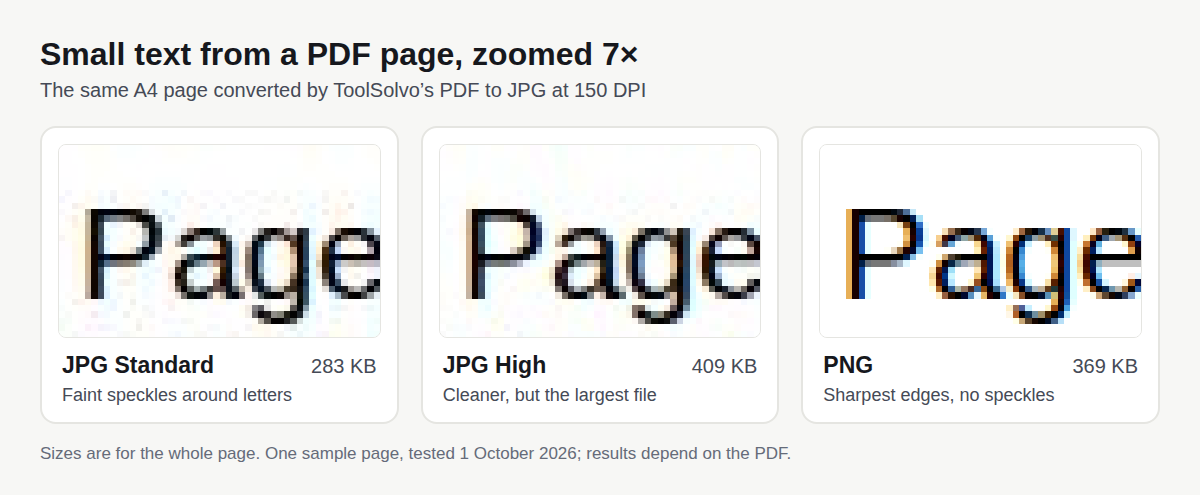
- For a text page, PNG was smaller than JPG High (369 KB vs 409 KB at 150 DPI) and sharper. PNG is lossless and handles large areas of plain white very efficiently, and MDN recommends lossless formats for text and sharp edges1.
- JPG Standard was the smallest but showed faint speckles around letters. For scans and photos, which have no perfectly sharp edges, those artefacts are hard to see, and JPG files stay much smaller than PNG.
- 300 DPI files were roughly 2.5–2.6 times the size of 150 DPI in this test.
Step by step
- Open PDF to JPG on your laptop or in your phone’s browser, and choose the PDF. It shows how many pages the PDF has.
- Choose All pages, or Choose pages and type a range such as 1-3, 5.
- Pick JPG or PNG, the resolution, and for JPG the quality (Standard or High).
- Press Convert. Long PDFs are converted page by page, with a progress bar and a Cancel button.
- Download a single image, or all images together as one ZIP file. Files are named after the PDF and page number, for example report-page-01.jpg, so they sort in page order.
In our test, converting all 10 pages as JPG Standard at 150 DPI gave “10 images are ready”, 2.8 MB in total, with a ZIP of all pages. The PDF was not uploaded: every request stayed on ToolSolvo’s own address.
Getting the image under an upload limit
- Use 150 DPI rather than 300 DPI for uploads unless the form asks for print quality.
- Choose JPG for scanned pages and photos.
- If one page image is still too large, set an exact target in KB with the Image Compressor. For ID and form uploads, the photo and signature size guide explains pixels vs KB.
- If the form accepts PDFs, it may be simpler to keep the page as a PDF: take it out with Split PDF and, if needed, shrink it with Compress PDF.
Good to know
- Each page becomes one picture of the whole page, so text in the image cannot be selected or searched. To get the text, use PDF to Word (or Image to Text (OCR) for scans).
- The tool does not pull out individual photos embedded in a PDF; it captures each page as you see it.
- Very large pages, such as posters, are drawn at up to 16 megapixels each to stay within browser limits, and you are told when this happens.
- Password-protected PDFs must be unlocked first.
Common questions
How do I convert a PDF to JPG without losing quality?
Choose a high enough resolution (150 DPI for screens, 300 DPI for print) and, for text-heavy pages, PNG or JPG High. JPG Standard is fine for photos and scans.
How do I convert only one page of a PDF to JPG?
Choose Choose pages and type the page number, for example 4. Only that page is converted.
Can I convert a PDF to JPG on my phone?
Yes, in the phone’s browser. Long PDFs at 300 DPI use a lot of memory; if the phone struggles, convert a smaller range or use 150 DPI.
How do I turn the images back into a PDF?
Use JPG to PDF. See how to convert photos to PDF.
Sources
- MDN Web Docs: Image file type and format guide — JPEG is lossy and shows blurring and fringes around text and sharp edges; lossless PNG is recommended for text, diagrams and screenshots.