Guide
How to Convert Word to PDF Without Losing Formatting
A CV, a report or an application needs to go out as a PDF, and it has to look the way you made it. The method you use decides whether fonts, headers and page breaks survive. This guide compares the main ways to convert Word to PDF, explains why formatting changes, and shows what each method kept in our test.
Published
Which method should you use?
| Method | Keeps the exact layout? | What you need | Where the file goes |
|---|---|---|---|
| Word on a computer | Yes, it is Word’s own layout | Microsoft Word | Stays on your computer |
| Word app on a phone | Yes, through the app’s Print option | The Word app | Stays on your phone, or your OneDrive if you save there |
| Google Docs | Close, but Docs lays the document out itself | A Google account | Your Google Drive |
| LibreOffice Writer | Close, but missing fonts are replaced | LibreOffice (free) | Stays on your computer |
| ToolSolvo Word to PDF | No: structure only, in one font | A browser | Stays in your browser; not uploaded |
For anything where the look matters, such as a CV, a formal letter or a form with a set layout, use Word or one of the office apps. ToolSolvo’s converter is for quick, readable PDFs of simple documents when you don’t have Word to hand.
How to save a PDF in Word on a computer
- Open the document in Word.
- Select File, then Save a Copy (if the document is already saved) or Save As.
- Choose where to save it, and pick PDF in the file type list.
- Optionally open More Options › Options to choose a page range, turn headings into PDF bookmarks, or add a password.
- Select Save, then open the PDF and check it.
Two of Word’s PDF options are worth knowing1:
- Bitmap text when fonts may not be embedded: if a font’s licence does not allow it to be put inside the PDF, Word saves that text as a picture so it still looks right everywhere.
- ISO 19005-1 compliant (PDF/A): an archiving format some government and court portals ask for.
On a Mac, Word has its own Save as PDF steps; Microsoft has a separate help page for them2.
How to convert Word to PDF on a phone
In the Word app, open the document, tap the menu (three dots), tap Print, choose Save as PDF as the printer, then pick where to save it3. Microsoft’s page shows the Android steps; on an iPhone the menus may differ slightly.
How to convert Word to PDF without Word
Google Docs
Open the .docx file in Google Docs, then choose File › Download and the PDF option. For a long document in Chrome, Google suggests File › Print with Save as PDF as the destination4. Google Docs lays the document out itself, so check the PDF if your document has an unusual layout.
LibreOffice Writer (free)
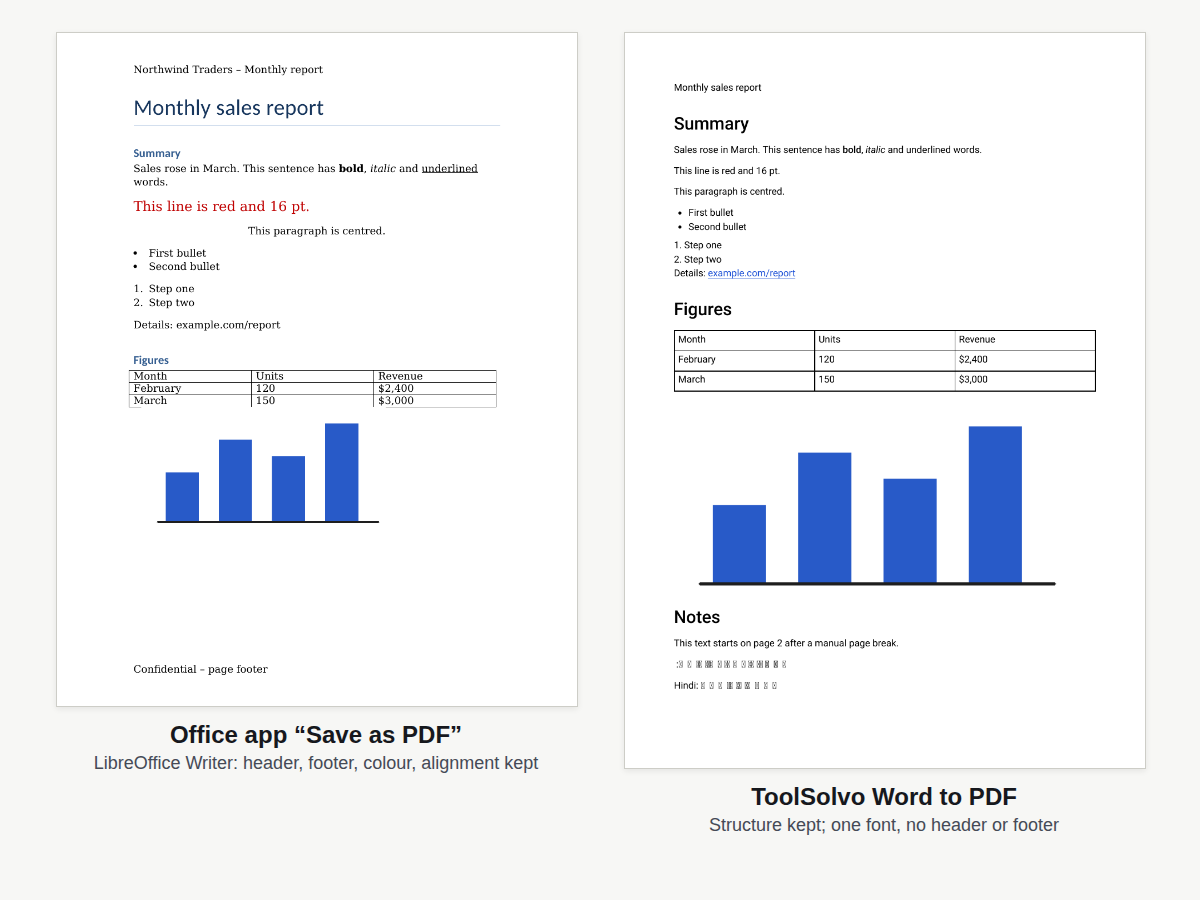
Open the .docx file in LibreOffice Writer and choose File › Export As › Export as PDF5. In our test, LibreOffice kept the header, footer, colours and alignment, but replaced the Georgia font, which was not installed, with a similar one.
ToolSolvo’s Word to PDF converter
- Open Word to PDF and choose a .docx file, up to 50 MB.
- Click Convert to PDF.
- Download the PDF and open it to check it.
The file is read in your browser and is not uploaded. The converter reads the document’s structure and builds a new A4 PDF with selectable text, so the result is tidy but not identical to the original:
| Kept | Not kept |
|---|---|
| Headings, paragraphs, bold, italic, underline and strikethrough | Fonts, font sizes, colours, highlighting and text alignment |
| Bulleted and numbered lists, tables and hyperlinks | Headers, footers, page numbers, manual page breaks and multi-column layouts |
| JPG, PNG, GIF and BMP images, scaled to fit the page | Text boxes, shapes, charts, SmartArt and EMF/WMF drawings |
| Text you can select, copy and search | Exact image sizes and table column widths (tables are fitted to the page width) |
Text is set in the Roboto font, which covers Latin, Greek and Cyrillic letters. Urdu, Arabic, Hindi and Chinese text does not display: in our test it came out as empty boxes. For documents in those scripts, save the PDF from Word or another office app.
Why formatting changes when you convert
- The font isn’t available. An app that doesn’t have your font substitutes another, which changes line lengths and can push text onto another page. Word avoids this by embedding fonts in the PDF where their licence allows1.
- A different program lays out the pages. Only Word lays out a Word document exactly as Word does. Other apps rebuild the layout, and small differences in spacing add up.
- Parts of the document aren’t supported. Text boxes, shapes, charts and older drawing formats are often simplified or left out by converters that don’t use Word.
- Tracked changes and comments. Word can include or leave out markup; check which you are publishing before you save1.
- Older .doc files. Many converters, including ToolSolvo’s, only read .docx. Open a .doc file in Word and save it as .docx first.
What happened in our test
This is one test on 14 October 2026. We made a two-page .docx with a title, headings, Georgia text, a red 16 pt line, a centred paragraph, lists, a link, a table, a chart picture, a header and footer, a manual page break, and a line each of Urdu and Hindi. We converted it with LibreOffice Writer and with ToolSolvo’s converter in Chromium:
| Feature | LibreOffice Writer | ToolSolvo Word to PDF |
|---|---|---|
| Pages | 2, as in the document | 1: the page break was not kept |
| Header and footer | Kept | Left out |
| Font | Georgia replaced with DejaVu Serif (not installed) | Everything in Roboto |
| Red 16 pt line, centred paragraph | Kept | Plain black text, left-aligned |
| Headings, bold, italic, underline, lists | Kept | Kept; the Title style became plain text, listed in a conversion note |
| Table | Kept | Kept, stretched to the page width |
| Picture | Kept at its size | Kept, enlarged to fit the page width |
| Link | Clickable | Clickable |
| Urdu and Hindi lines | Displayed | Shown as empty boxes |
| Time and uploads | Not measured | About 1 second; no file sent anywhere |
Check the PDF before you send it
- Page count and page breaks: nothing pushed onto an extra page.
- Fonts and special characters, including names, currency symbols and any Urdu or Arabic text.
- Headers, footers and page numbers, if your document has them.
- Tables and pictures: nothing cut off at the page edge.
- Links: click one to make sure it opens.
Common questions
Is converting Word to PDF free?
Yes. Word’s Save as PDF is included with Word, Google Docs and LibreOffice are free, and ToolSolvo’s converter is free with no sign-up and no watermark.
Can I convert an old .doc file?
Not with ToolSolvo, which reads .docx only. Open the .doc file in Word, use Save As to save it as .docx, then convert it, or save the PDF directly from Word.
Will the links in my document still work?
Yes, in our test both LibreOffice and ToolSolvo kept the link clickable in the PDF.
Can I convert a document with Urdu text?
Use Word, Google Docs or LibreOffice. ToolSolvo’s converter uses a font without Urdu letters, so Urdu text does not display.
Can I turn the PDF back into a Word document?
Yes, though the layout may change. See how to convert PDF to Word.
Sources
- Microsoft Support: Save or convert to PDF or XPS in Office desktop apps — Word’s Save As / Save a Copy › PDF steps and options (bitmap text, PDF/A, bookmarks, markup, password).
- Microsoft Support: Save or convert to PDF on your Mac — the Mac steps.
- Microsoft Support: Save a PDF of your file on your mobile device — Print › Save as PDF in the Word app.
- Google Docs Editors Help: Create, view, or download a file — File › Download; File › Print › Save as PDF for large documents in Chrome.
- LibreOffice Help: Export as PDF — File › Export As › Export as PDF.