Guide
How to Crop an Image Online: Exact Pixels, Shapes and Photo Sizes
A profile picture needs to be square, a banner needs 16:9, a form wants a passport-style photo, or you just want the clutter at the edges gone. Cropping cuts the picture down without scaling it. This guide shows how to crop to a shape or to exact pixels in your browser, how that differs from resizing, and what to do next for a form.
Published
Crop or resize?
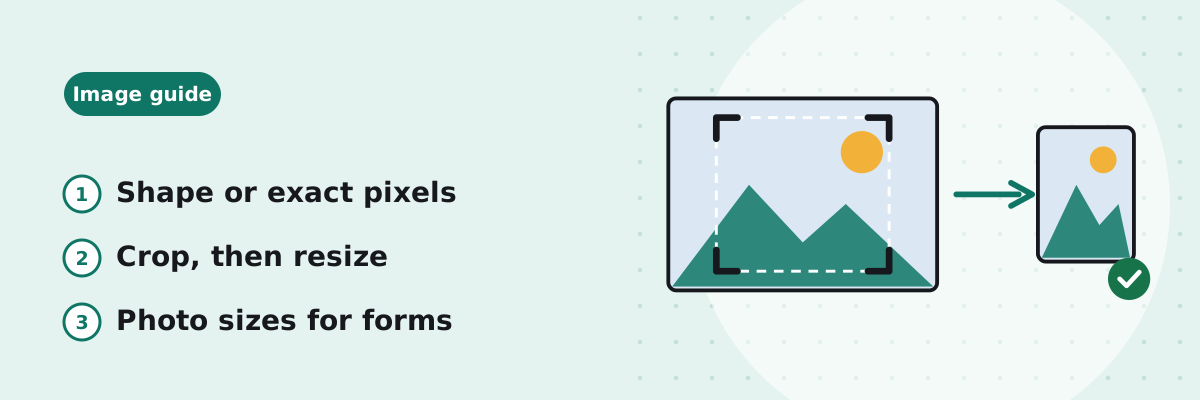
Cropping cuts a rectangle out of the picture and throws the rest away: what you keep stays at its original size and sharpness. Resizing scales the whole picture up or down to new dimensions. A form that asks for 413 × 531 pixels usually needs both: crop to the right shape and the right part of the photo, then resize the crop to those exact pixels. Cropping first means the face fills the frame instead of being squeezed in with the background.
How to crop in your browser
- Open the Image Cropper and choose a JPG, PNG or WebP image, up to 50 MB. Phone photos stored sideways are shown the right way up.
- Pick a Shape: Free for any rectangle, Square 1:1, 4:3, 3:4, 16:9, 9:16, 3:2, 2:3 or Photo 35 × 45. With a shape chosen, the box keeps that ratio however you drag it.
- Drag the box to move it, or drag a corner or edge to resize it. The line under the picture says what will be kept, for example “Keeping 3000 × 3857 px of 3000 × 4000 px”. For exact values, type From left, From top, Width and Height under Crop box in pixels.
- If the picture needs turning, use Turn left 90°, Turn right 90°, Mirror left to right or Mirror top to bottom first; the box always applies to what you see.
- Under Output, keep Same as original or choose JPG, PNG or WebP, and set the quality for JPG and WebP (92% by default).
- Click Crop image, check the preview and the stated size, and download.
The arrow keys nudge the box by one pixel when it has focus, and by ten with Shift. The smallest box is 8 × 8 pixels. A box typed by hand must be whole pixels and must lie inside the image; the tool says so if it does not, and Fit the box inside the image pulls it back.
Photo sizes for forms: crop, then resize, then compress
Forms describe a photo in three different ways, and each needs a different tool. The shape (35 × 45 mm, or 2 × 2 inches) is a crop. The pixel size (413 × 531 px) is a resize. The file size (under 50 KB) is compression. How to resize a photo or signature for an online form explains the rules themselves; here is the order of work:
- Crop with Photo 35 × 45 (or Square for a 2 × 2 inch photo), placing the box so the head and shoulders sit as the form shows. On a 3000 × 4000 px phone photo the preset starts as a 3000 × 3857 px box; drag it to the face and shrink it if the face should fill more of the frame.
- Open the result in the Image Resizer and type the pixel size the form gives, such as 413 × 531 px, which is 35 × 45 mm at 300 DPI. Because the crop already has that shape, nothing is cut off.
- If the form sets a KB limit, open that result in the Image Compressor and enter the limit as the target.
Use the numbers printed on your own form: 35 × 45 mm is common, but not universal, and the rules about background and face position are the form’s, not the tool’s.
Which shape for which job
| Use | Shape | Notes |
|---|---|---|
| Profile picture, app icon | Square 1:1 | Many sites crop to a circle on display; keep the subject centred. |
| Video thumbnail, presentation slide, website banner | 16:9 | Landscape; 9:16 is the same shape upright, for stories and phone screens. |
| Prints from a camera | 3:2 or 2:3 | The shape of a 6 × 4 inch print; 4:3 and 3:4 suit most phone photos and 8 × 6 prints. |
| Passport-style photo for a form | Photo 35 × 45 | Then resize to the form’s pixels. |
| Cutting clutter from the edges | Free | Any rectangle; type exact pixels if a site states them. |
What cropping does to the file
- The kept pixels are copied as they are: no scaling, so no softening.
- A JPG or WebP result is encoded again at the quality you set, so a JPG cropped and saved many times slowly loses quality. Crop the original once. PNG is lossless.
- JPG has no transparency, so see-through areas of a PNG become white when saved as JPG.
- The result is written fresh by your browser, so camera details and location tags from the original are not copied into it.
What happened in our test
This is one test on 20 October 2026 of where each shape places its starting box, run with the tool’s own code. The box starts as large as the shape allows, centred, and you then move or shrink it:
| Photo | Shape | Starting box | Position |
|---|---|---|---|
| 3000 × 4000 (portrait) | Photo 35 × 45 | 3000 × 3857 px | 71 px from the top |
| 3000 × 4000 (portrait) | Square 1:1 | 3000 × 3000 px | 500 px from the top |
| 4000 × 3000 (landscape) | Photo 35 × 45 | 2333 × 3000 px | 833 px from the left |
| 4000 × 3000 (landscape) | 16:9 | 4000 × 2250 px | 375 px from the top |
35 mm at 300 DPI is 35 ÷ 25.4 × 300 ≈ 413 pixels and 45 mm is about 531 pixels, so a 35 × 45 mm photo at 300 DPI is 413 × 531 pixels; the Image Resizer works this out for you.
Common questions
Does cropping reduce the quality of a photo?
The pixels you keep are not changed, so the picture is as sharp as before. Saving as JPG encodes the file again at the quality you choose; keep it at 90% or higher, and crop the original rather than a copy that has been saved several times.
How do I crop to exact pixel dimensions?
Type the width and height, and where the box starts from the left and top, under Crop box in pixels. The crop is exact to the pixel. If you need a size larger than the picture, cropping cannot give it; resize instead.
How do I crop a photo for a passport-style form?
Choose Photo 35 × 45, place the box around the head and shoulders, crop, then resize the result to the pixel size the form gives and compress it to the form’s KB limit. Follow the form’s own instructions for the background and face position.
Can I crop a circle?
No. The tool crops rectangles. Sites that show round profile pictures crop the circle themselves from a square, so crop to Square 1:1 and keep the subject in the middle.
Can I crop several images at once?
One image at a time, since each needs its own box. Choose another image when you have downloaded the first.
Sources
- MDN Web Docs: Image file type and format guide — JPEG is lossy and has no transparency; PNG is lossless; WebP supports both lossy and lossless with transparency.