Guide
How to Delete Pages from a PDF Without Re-saving the Rest
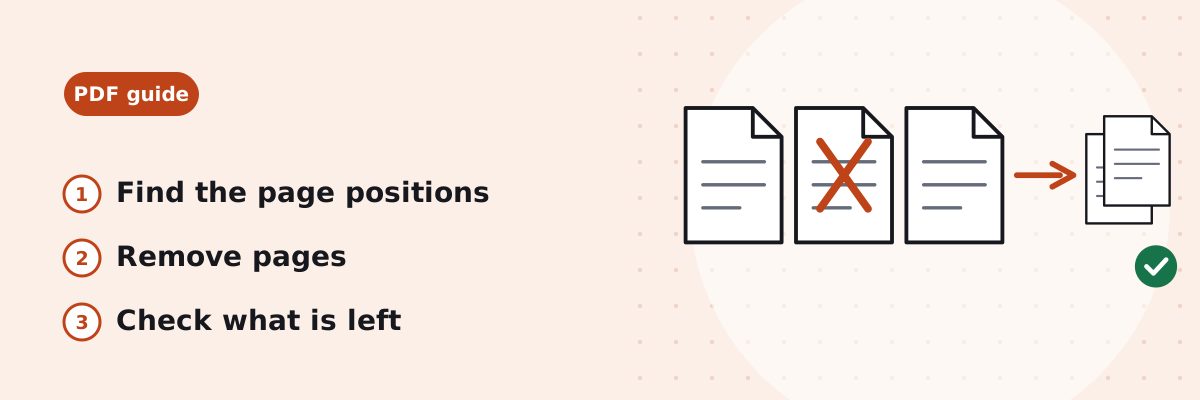
A scanned contract has a blank page in the middle, a report needs its cover and appendix taken out, or a merged file picked up a page twice. This guide shows how to remove the pages you do not want, what happens to the pages you keep, and when splitting the file is the better choice.
Published
First, find the pages by their position in the file
Tools count pages by their position: page 1 is the first page in the file, whatever number is printed on it. A report whose cover and contents pages are unnumbered, followed by a page printed “1”, has that page at position 3. Open the PDF in a viewer and note the position shown in its page counter, or use the clickable grid in the tool, which shows every page in order.
How to remove pages in your browser
- Open Remove PDF Pages and choose the PDF, up to 200 MB.
- Under Pages to remove, type page numbers and ranges separated by commas, such as 2, 5-7, or click pages in the grid. Select all and Clear help with long files; a page number that does not exist is pointed out before anything happens.
- Read the line that says how many pages of the total will remain. If you have selected every page, the tool says at least one page must stay.
- Click Remove pages, then download the file. It is named like the original with “-pages-removed” added, so the original is not changed.
Password-protected PDFs need to be unlocked first. If what you want is the opposite, keeping a few pages and dropping the rest, Split PDF takes the pages you type and makes a new file from them.
What happens to the rest of the file
- The pages you keep are copied into a new PDF in their original order, without being redrawn, so text stays sharp and selectable and links on those pages still work.
- The removed pages are left out of the new file altogether, not just hidden: in our test (below) the saved file held only the kept pages. The file shrinks by what the removed pages held; our 12-page test file went from 11,391 to 7,851 bytes when four pages were removed.
- Bookmarks and interactive form fields belong to the document rather than to a page, and may not carry over to the new file. Keep the original if you need them.
Other ways to delete pages
Preview on a Mac
Open the PDF in Preview, show the thumbnails (View › Thumbnails), select the pages and press Delete, or choose Edit › Delete. Deleting a page also removes any annotations on it1. Save the file to keep the change.
Print to PDF with a page range
Any app that prints can “print” pages 1-3, 5 to a new PDF. The pages look right, but the file is rebuilt by the printer driver: links, bookmarks and form fields are lost and text can become shapes. Keep it as a last resort when nothing else is to hand.
What happened in our test
This is one test on 20 October 2026, run with the tool’s own code:
| What we did | Result |
|---|---|
| 12-page A4 report of 11,391 bytes, removed 2, 5-7 | 4 pages removed, 8 pages remain, in the order 1, 3, 4, 8, 9, 10, 11, 12; the file is called report-pages-removed.pdf and is 7,851 bytes. |
| 6-page file with a different marker word on each page, removed pages 2 to 5 | 2 pages remain and the file shrank from 3,450 to 1,082 bytes; decoding every part of the saved file found two page records and only the kept pages’ marker words, with no trace of the other four. |
| Selected every page of a 2-page file | Refused: at least one page must stay in the PDF. |
| Typed a page number past the end | The page box refuses it before anything happens, saying that page does not exist and how many pages the PDF has. |
Check the result before you send it
- The page count shown in your viewer should be the original count minus the pages you removed.
- Page through it once: the pages after a removed one move up, so position 5 is now a different page.
- If the file has a contents page or cross-references by page number, they still show the old numbers. Edit them in the original document and export again if that matters.
- Keep the original file until you have checked the new one.
Common questions
Can I delete every page of a PDF?
No. A PDF needs at least one page, and the tool refuses when all pages are selected. If you want an empty document, start a new one in your word processor.
Does deleting pages reduce the file size?
Yes, by roughly what the removed pages held: our 12-page test file went from 11,391 to 7,851 bytes when four pages were removed. Scanned pages, which are pictures, free the most. If the file is still large, Compress PDF reduces the pictures on the remaining pages.
Why did the wrong page get removed?
The numbers you type are positions in the file, not the numbers printed on the pages. A cover or contents page shifts everything after it. Use the grid, which shows each page, and check the original again; it is unchanged.
How do I remove blank pages from a scan?
Open the file in the tool and look through the grid for the blank pages, click each one, check the remaining count, then remove them. The tool does not detect blank pages for you.
Should I delete pages or split the PDF?
Delete when you want the file minus a few pages. Split when you want only a few pages, or several files from one: Split PDF copies the pages you choose into a new file and can make one file per range. Both leave the pages you do not keep out of the new file.
Sources
- Apple Support: Add, delete, or move PDF pages in Preview on Mac — select pages in the thumbnail sidebar and press Delete or choose Edit › Delete; deleting a page removes its annotations.