Guide
How to Merge PDF Files into One Document
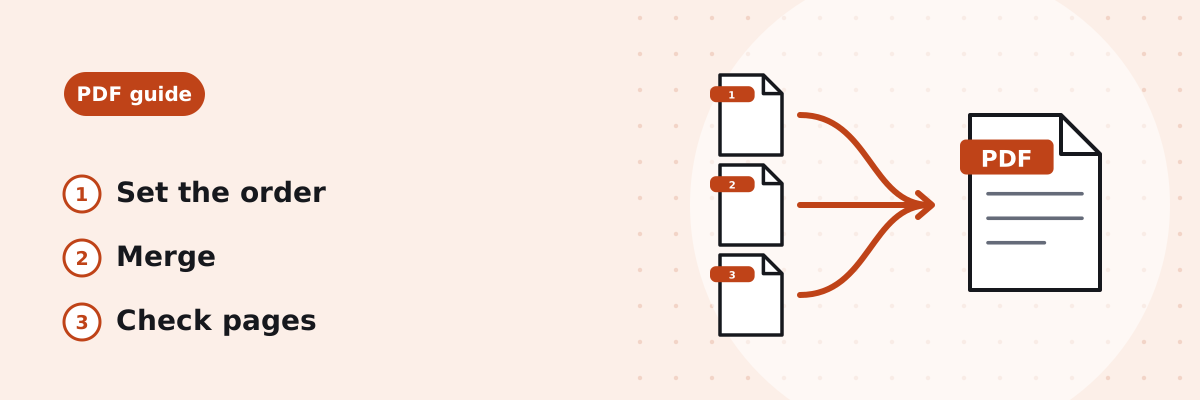
Merging puts several PDFs into one file, one after another, in the order you choose. Here is how to do it, how to get the order right, and what to check before you send the result.
Published
How to merge PDF files with ToolSolvo
- Open the Merge PDF tool.
- Drop your PDFs onto the area that says Drop your PDF files here, or click Choose PDF files and select two or more. You can add more later with Add more files.
- Check the list under Files to merge. The file at the top comes first in the merged PDF. Use the up and down arrows next to a file to move it, the × button to remove it, or Remove all to start again.
- Click the merge button. It shows how many files will be joined, for example Merge 3 PDFs.
- When you see “Your PDFs have been merged”, click Download to save merged.pdf. To fix the order, click Change order and merge again; to start with different files, click Merge other files.
Getting the order right
The merged PDF follows the list from top to bottom, and each file keeps its own page order. Files are listed in the order you add them, so if you select several at once, check the list before merging: your computer or phone may not add them in the order you expect.
Before you merge: a quick check
- Sequence: read the list from top to bottom and make sure it matches the order the reader should see.
- Whole files only: every page of every file is included. If you only need some pages, extract them first (see below).
- Locked files: remove the password from any protected PDF in your PDF reader before adding it.
- Keep your originals: merging creates a new file and does not change the files you added.
After downloading, open merged.pdf and check that:
- it opens without an error;
- the page count is the total of all the files you added;
- the pages are in the right order, especially where one file ends and the next begins;
- any links, form fields or bookmarks you rely on still work (see the next section).
What carries over, and what may not
- Pages: copied as they are. Nothing is recompressed, so text stays selectable and images keep their quality.
- Links on the pages: kept. In our test the web link still worked in the merged file.
- Fillable form fields: may not work. In our test the value already typed into a field was still shown on the page, but the merged file no longer listed it as a form field, so it may not be possible to edit it. Fill in and save forms before merging, or keep them as separate files.
- Bookmarks and document properties: not carried over in our test. The bookmark and the document title of the original were missing from the merged file. Both are stored for the whole document rather than on individual pages1, which is why copying pages does not bring them along.
- Password-protected PDFs: not accepted. The tool shows a message asking you to remove the password in your PDF reader, then try again.
- File size: the merged file is not made smaller. To reduce it afterwards, use Compress PDF.
Merging whole files vs. extracting selected pages
Merging joins complete files. Extracting takes chosen pages out of one PDF. If you want, say, pages 1–3 of one document followed by another whole document, first use Split PDF to extract pages 1–3 into a new file, then merge that file with the second document.
Where your files go
Merging happens in your browser: the PDFs are processed on your own device and are not uploaded to ToolSolvo or anyone else. The tool is free and needs no account.
Common questions
How many PDFs can I merge at once?
At least two. The tool does not set a maximum number of files; each PDF can be up to 200 MB. Very large merges use more of your device’s memory and take longer, especially on phones.
Can I merge only some pages of a PDF?
Not directly: every page of each file is included. Extract the pages you need with Split PDF first, then merge the result.
Can I merge images or Word documents?
The Merge PDF tool accepts PDF files only. Turn photos into a PDF with JPG to PDF, or a .docx document with Word to PDF, then merge the PDFs.
Why is the merged PDF so large?
Pages are copied without recompression, so the merged file is usually close to the size of the originals combined. If it is too big to send, try Compress PDF, and read how each compression level affects text, links and forms before you choose one.
Sources
- ISO 32000-1:2008, Document management — Portable document format — Part 1: PDF 1.7 (Adobe-hosted copy) — §12.3.3 document outline (bookmarks) and §12.7 interactive forms: both are defined for the document as a whole, in the document catalog, not on individual pages.