Guide
How to Translate the Text in an Image (Photos, Screenshots and Scans)
A sign, a letter, a screenshot or a page you photographed: the words are in the picture, but you need them in another language. This guide explains how image translation works, how to do it with ToolSolvo’s Image Translator, how to get a clearer result, and where it falls short.
Published
Image translation, OCR and translating a picture’s design
These three are often confused, and they give you different things:
| Kind of tool | What it does | What you get |
|---|---|---|
| OCR (text recognition) | Reads the words in a picture | The same words as text you can copy, in the original language |
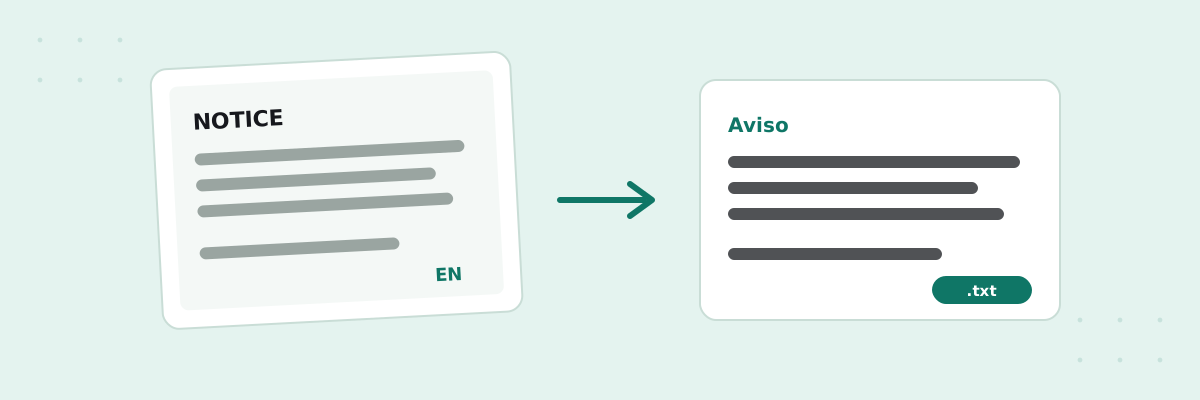
| Image translation (this tool) | Reads the words, then translates them | The original text and its translation, as plain text |
| Translating the design | Replaces the words inside the picture, keeping fonts and layout | A new image. ToolSolvo’s Image Translator does not do this |
If you only need the words in their original language, use Image to Text (OCR), which also reads Urdu and PDFs. The Image Translator uses the same text recognition, limited to English, and adds the translation step.
How to translate the text in an image
- Open the Image Translator in Google Chrome on a computer. The translation comes from a translator built into the browser, so other browsers may not offer it; the page tells you if yours does not.
- Add a JPG, PNG or WebP image with English text, up to 20 MB. iPhone HEIC photos need to be saved as JPG first.
- Under Translate into, pick one of the 38 languages. The page suggests your browser’s language if it is on the list.
- Click Translate. The page first reads the text in the image, then translates it, paragraph by paragraph.
- Check the English text it read. If a word was misread, correct it in the box and click Translate again; the image is not read a second time.
- Use Copy translation, or download the translation as a .txt file.
The first time you translate into a language, the browser downloads that language pack, and the page shows a message while it does. In our test, the first French translation took about 52 seconds in all; later translations into a language already on the computer took about 1 to 2 seconds for a short notice.
Where your image and text go
ToolSolvo does not upload your image or its text. The words are read on your device, and only the text is passed to the translator inside your browser. In our test, recording all of Chrome’s network traffic, translating made no request to a translation service. The only translation-related download was the language pack, which Chrome fetched from Google the first time a language was used. Chrome’s own background requests, such as update checks, appeared whether or not anything was translated.
Which browsers and languages work
- Browser: Google Chrome 138 or later on a computer. Google’s documentation says the built-in translator does not work on mobile devices. We tested Chrome 154 on Windows.
- Text in the image: English only.
- Languages to translate into: 38, including Arabic, Bengali, Chinese (Simplified and Traditional), French, German, Hindi, Indonesian, Japanese, Korean, Marathi, Portuguese, Russian, Spanish, Tamil, Telugu, Thai, Turkish and Vietnamese.
- Not available: Urdu, Persian, Punjabi, Pashto and Sindhi, among others, because the browser’s translator did not offer them when we tested.
Tips for a clearer result
- Photograph the text straight on, in good light, without shadows or glare.
- Get close, or crop the picture, so the text fills most of it. Small text is the most common reason for misreading.
- Use a sharp image. Zoom in before you take a screenshot of small text.
- Printed text works best. Handwriting, decorative fonts and text over busy backgrounds are often misread.
- Always check the English text the page read. A misread word is translated as a different word, so correct it and use Translate again.
What happened in our test
This is one test on 1 October 2026, in Chrome 154 on Windows, not a guarantee for every image:
| Image | Result |
|---|---|
| A clear, printed notice (PNG and JPG) | Read correctly and translated in about 1 to 2 seconds, keeping the paragraphs |
| The same notice, small and blurred | Read as nonsense, with a warning that the text may be misread; the translation was nonsense too |
| A notice written in Spanish | Not translated: the tool reads English, so it passed the Spanish words through unchanged |
| A picture with no text | The page said no English text was found |
| A clear notice, into French for the first time | About 52 seconds, most of it the browser downloading the French pack |
Limits to know
- Machine translation can get meaning, names, tone and idioms wrong. Have anything official or important checked by a person who knows both languages.
- Layout, fonts and colours are not kept. Text from different areas of a picture, such as a sign with several panels, may come out in an order you need to check.
- Only one image at a time, and only the text the page can read in it.
Common questions
Can I translate an image into Urdu?
Not with this tool. The translator built into Chrome did not offer Urdu when we tested. You can still read English or Urdu text from an image with Image to Text (OCR).
Does it work on my phone?
No. It needs the translator built into Chrome on a computer, which Google says does not work on mobile devices. On a phone, the page tells you the translator is missing.
Will the translation be put back into the picture?
No. You get the translated text to copy or download. The picture itself is not changed.
Can it translate text that is not in English?
No. It reads English text only, so other languages are misread or left untranslated.
Sources
- Chrome for Developers: Translation with built-in AI (Translator API) — available from Chrome 138, works in Chrome on desktop and not on mobile devices, and the model is downloaded the first time a website uses it.