Guide
Are Online File Tools Safe? What Happens to Your Files, and How to Check
Whether an online converter is safe depends mostly on one thing: where your file goes. This guide explains the two ways online tools work, the risks worth knowing about, a check anyone can run in a couple of minutes, and which ToolSolvo tool to use for each task.
Published · Updated
The two kinds of online file tool
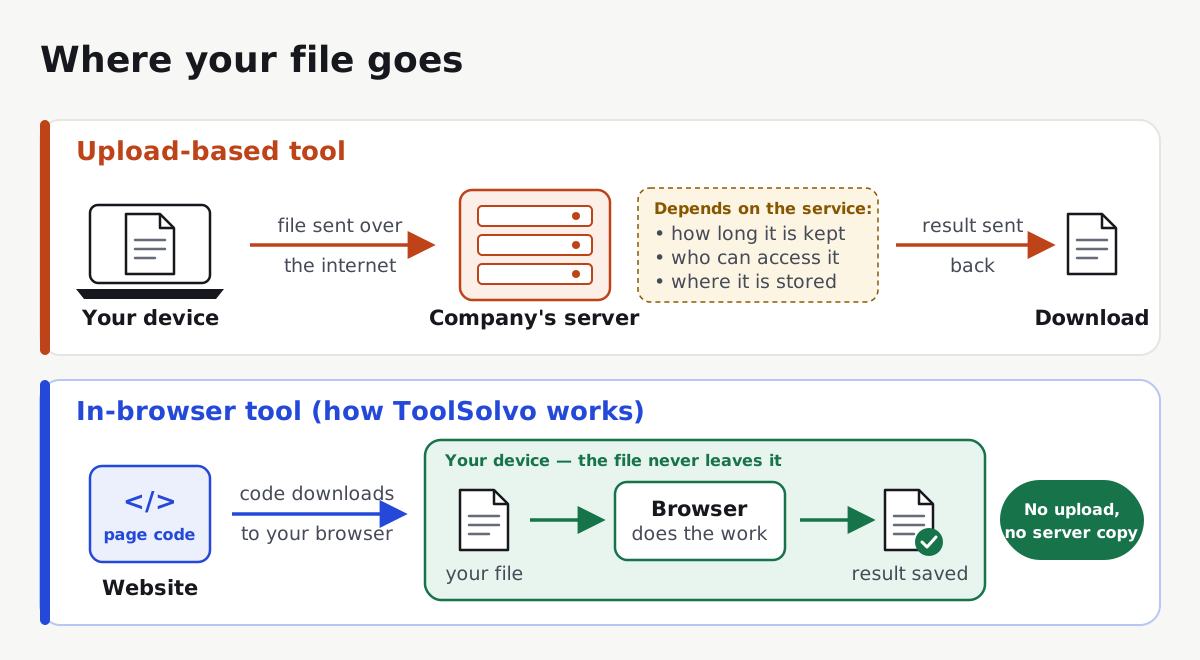
Upload-based tools are the traditional kind. You choose a file, it is uploaded, a server converts or compresses it, and you download the result. Many reputable services work this way and publish how long they keep files. The point is not that uploading is always unsafe, but that your file now exists somewhere you cannot see, under rules you have to read and trust.
In-browser tools use the same web technologies your browser already has. A web page can read a file only after you choose it or drop it on the page1, and it can do heavy work such as rebuilding a PDF or compressing a photo with code that runs inside the browser2, often in a background thread so the page stays responsive3. Nothing has to be uploaded for the task to be done.
| Question | Upload-based tool | In-browser tool |
|---|---|---|
| Where the work happens | On the company’s server | On your own device |
| Copy of your file elsewhere | Yes, at least for a while | No |
| What you need to trust | The site’s code and how the company stores and deletes files | The site’s code, which you can check (see below) |
| Needs internet during the task | Yes | Usually only to load the page |
| Speed and size limits depend on | The company’s servers and your upload speed | Your device’s memory and processor |
The risks worth knowing about
- Copies you cannot delete. With an upload-based tool, your file is stored on someone else’s server. Read the privacy policy for how long files are kept and whether people or other companies can access them.
- Fake converter websites. In March 2025 the FBI’s Denver field office warned that criminals run free “converter” sites that install malware or collect personal and banking details from the files people submit6. Its advice: think before using an online tool, keep antivirus up to date, and scan files before opening them.
- Sensitive documents. ID cards, passports, bank statements, payslips, medical letters and signed contracts deserve extra care, whichever tool you use. For these, prefer a tool that works on your device, and run the check below first.
- In-browser is not automatically safe. A page that works in your browser could still send data if its code were written to. That is why a claim of “no upload” is worth checking rather than taking on trust, including ours.
How to check whether a tool uploads your file
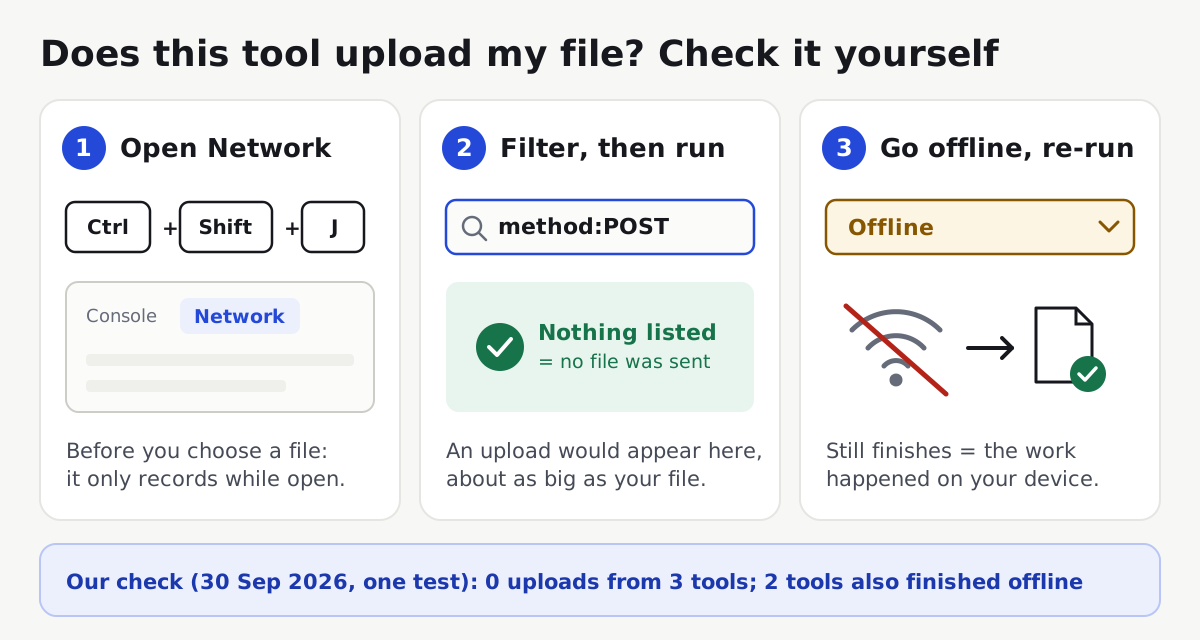
You can run this on any website, on a computer, using Chrome or Edge:
- Open the tool’s page. Before choosing a file, open the developer tools (Ctrl+Shift+J on Windows, Cmd+Option+J on a Mac) and click the Network tab. The panel only records while it is open5.
- Type
method:POSTin the Network panel’s filter box. This hides everything except requests that send data to a server, which is how uploads are normally made. - Now choose your file and run the tool. If a new request appears, the page sent something; click it to see where it went and how big it was. An upload is usually about as large as your file. If the list stays empty, nothing was posted.
- For a second check, leave the page open, change the Network panel’s throttling menu (it usually says “No throttling”) to Offline, and run the tool again. An upload-based tool cannot finish without a connection; an in-browser tool can.
Some uploads use other methods, such as PUT, so if you want to be thorough, clear the filter and look for any request whose size is close to your file’s. Test with a harmless sample file rather than the sensitive document itself.
How ToolSolvo handles your files
- Your files, text and numbers stay on your device. Every tool, including the calculators and Urdu text tools, does its work in your browser. What you choose, type or paste is not uploaded to ToolSolvo or anyone else, so we cannot see it and do not store it.
- Results are created on your device. Downloads are made in your browser, and Copy buttons put text on your own clipboard.
- Three tools download extra files the first time you use them. The Background Remover downloads an AI model of about 42 MB, and Image to Text (OCR) downloads a text-recognition engine of about 4 MB plus data for the language you choose. These come from ToolSolvo itself, not other companies, and only when you use those tools. The Image Translator uses the same engine, and its translations come from the translator built into your browser: the first time you use a language, the browser downloads that language pack from its maker (for Chrome, Google).
- No account or ads; visit statistics only. ToolSolvo uses Google Analytics, which sets cookies, to count visits and see which pages are opened; in the UK, the EU and Switzerland it runs only if you accept the cookie notice. It receives details such as the page address and your browser type, never the files, text or numbers you use in the tools. Like any website, its host may also log technical details of each page request, such as your IP address. The Privacy Policy has the details.
- Free. The tools need no sign-up and add no watermark.
What working on your device means in practice
Because your own device does the work, very large files are limited by its memory, and phones are slower than computers. ToolSolvo shows each tool’s limits in its upload area:
- PDF tools accept files up to 200 MB each; image tools up to 50 MB; the Background Remover up to 25 MB, because the AI step needs extra memory.
- Image to Text (OCR) accepts images up to 20 MB and PDFs up to 50 MB, and reads up to 20 pages per run; longer documents are done in page ranges.
- Password-protected PDFs must be unlocked in your PDF reader first.
- iPhone HEIC photos cannot be opened by most browsers; export or share them as JPG first.
- PDF to Word converts the text a PDF already contains. A scanned PDF is a picture of text, so read it with Image to Text (OCR) instead.
Which ToolSolvo tool to use for each task
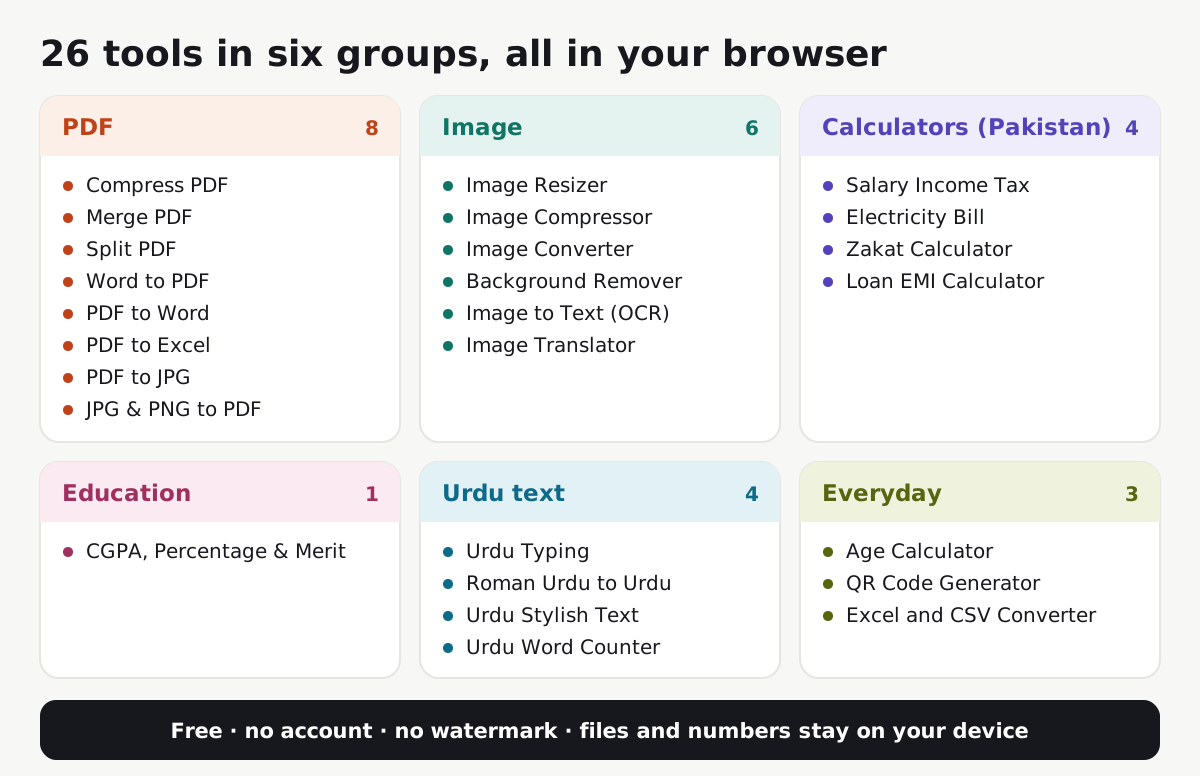
| I want to… | Use | Works with |
|---|---|---|
| Make a PDF smaller for email or an upload form | Compress PDF | PDF, up to 200 MB |
| Combine several PDFs into one | Merge PDF | 2 or more PDFs |
| Take some pages out of a PDF | Split PDF | PDF, up to 200 MB |
| Turn a Word document into a PDF | Word to PDF | .docx, up to 50 MB |
| Edit the text of a PDF in Word | PDF to Word | PDFs that contain text |
| Get a table out of a PDF into a spreadsheet | PDF to Excel | PDFs that contain text; .xlsx out |
| Turn PDF pages into images | PDF to JPG | PDF; JPG or PNG out |
| Put photos into one PDF | JPG & PNG to PDF | JPG or PNG, up to 50 MB each |
| Change a photo’s width and height | Image Resizer | JPG, PNG, WebP |
| Get a photo under a KB limit | Image Compressor | JPG, PNG, WebP |
| Change PNG to JPG, or JPG to WebP | Image Converter | JPG, PNG, WebP |
| Cut out a person or object | Background Remover | JPG, PNG, WebP, up to 25 MB |
| Copy text from a photo or scan | Image to Text (OCR) | Images and PDFs; English and Urdu |
| Translate the English text in a photo or screenshot | Image Translator | JPG, PNG, WebP; Chrome on a computer |
| Estimate salary income tax in Pakistan | Salary Income Tax Calculator | Tax year 2027 rates |
| Estimate a home electricity bill in Pakistan | Electricity Bill Estimator | Units used; NEPRA’s notified tariff |
| Work out Zakat | Zakat Calculator | Your assets and today’s nisab |
| See a loan’s monthly instalment | Loan EMI Calculator | Amount, rate and term |
| Calculate GPA, CGPA, percentage or merit | CGPA, Percentage & Merit Calculator | Your own grading scale |
| Type in Urdu | Urdu Typing | English keys or on-screen keyboard |
| Turn Roman Urdu into Urdu script | Roman Urdu to Urdu | Text you type or paste |
| Decorate an Urdu name or message | Urdu Stylish Text | Urdu text |
| Count Urdu words and characters | Urdu Word & Character Counter | Urdu, English or mixed text |
| Find an exact age | Age Calculator | Two dates |
| Make a QR code for a link or text | QR Code Generator | PNG or SVG out |
| Turn an Excel sheet into CSV, or CSV into Excel | Excel and CSV Converter | .xlsx or .csv, up to 50 MB |
You can also browse every tool by category on the All tools page.
A quick checklist before using any online file tool
- Check the web address, and bookmark tools you trust rather than clicking the first advert.
- Be wary of a “converter” that asks you to install a program or browser extension to get your file.
- Look for a clear statement of where files are processed and how long they are kept.
- For anything sensitive, run the network check with a sample file first.
- Keep your original. A good tool creates a new file and leaves the original unchanged.
- Open and check the result before sending it, and scan downloaded files with your antivirus, as the FBI advises6.
Check the result before you send it
A safe tool can still produce a result that is not what you need: a PDF in the wrong order, a photo compressed too far, or text read incorrectly from a scan. These guides explain what to look for:
- How to Compress a PDF: which quality level to choose and why some PDFs will not get smaller.
- How to Merge PDF Files: getting the order right, and what may not carry over.
- How to Extract Text with OCR: improving scans and spotting typical recognition errors.
- How to Resize a Photo or Signature for an Online Form: pixels, KB and print size.
Common questions
Is it safe to upload documents to online PDF tools?
It can be, but you are trusting the company with a copy of the document. Read how long files are kept and who can access them, and avoid uploading ID documents, bank statements or contracts to a site you cannot identify. For sensitive files, a tool that works in your browser avoids the copy altogether.
Do in-browser tools work without the internet?
They need a connection to load the page. After that, many can finish offline: in our test, Merge PDF and Compress PDF completed with the browser offline. The Background Remover and Image to Text (OCR) need a connection the first time, to download their model and engine.
Why does the Background Remover download a large file?
Removing a background needs an AI model, and because the work happens on your device, the model has to be there too. It is about 42 MB, comes from ToolSolvo’s own server, and your browser may keep it in its normal cache so it is not downloaded every time.
Does ToolSolvo keep my files?
No. Your files are held in your browser’s memory only while the tool is open and are cleared when you leave the page. They are never sent to ToolSolvo, so there is nothing for us to keep.
Can ToolSolvo see the numbers I enter in the calculators?
No. The salary tax, electricity bill, Zakat, loan and CGPA calculators work in your browser in the same way as the file tools. The salary tax, electricity bill and Zakat calculators also list the official sources and dates their rates come from.
Is ToolSolvo free, and do I need an account?
Every tool is free to use, needs no sign-up and adds no watermark to your files.
Sources
- MDN Web Docs: Using files from web applications — a web page can read only the files the user selects or drops on it.
- MDN Web Docs: WebAssembly — compiled code runs in the browser at near-native speed, which makes file processing on the device practical.
- MDN Web Docs: Using Web Workers — heavy work runs in a background thread in the browser; workers can also make network requests, which is why the check in this guide looks at requests rather than trusting the method.
- W3C: File API (Working Draft) — the standard interfaces browsers use to read file data locally.
- Chrome for Developers: Inspect network activity — opening the Network panel, what it shows, filtering requests, and that it only records while DevTools is open.
- FBI Denver: FBI Denver Warns of Online File Converter Scam (7 March 2025) — fake free converter sites that install malware or collect personal data, and the FBI’s advice.