Guide
How to Convert Excel to PDF and Fit a Sheet on One Page
A price list, a timesheet or a set of accounts needs to go out as a PDF, but the last columns land on a page of their own, or dates turn into ###. This guide shows how to save a spreadsheet as PDF with Excel, Google Sheets and a free browser tool, how to fit a sheet on one page, and what each method kept in our test.
Published
Why a spreadsheet PDF often looks wrong
A spreadsheet has no pages until you print it. When Excel or another office app saves a PDF, it prints the sheet using the sheet’s own column widths and page settings, so three things often go wrong:
- Columns spill onto extra pages. A sheet wider than the paper is printed in strips, and the later pages have no row labels.
- ### instead of values. A number or date too wide for its column shows as ### on screen and in the PDF.
- Text cut off. Long text in a narrow column is cut at the next filled cell.
Fixing the page setup first, as below, solves most of this in Excel itself.
How to save an Excel sheet as PDF
- Widen any column that shows ###: double-click the line on the right of its letter.
- Open the Page Layout tab and choose Orientation › Landscape for a wide sheet.
- Open Page Setup (the small arrow in the corner of the Page Setup group), and on the Page tab choose Fit to. Enter 1 page wide, and leave the second box empty or use a larger number so long sheets can run onto more pages2.
- Choose File › Save As or Save a Copy, then pick PDF in the file type list1.
- Choose Standard for printing or Minimum size for email, and use Options to choose what to include1.
- Select Save, then open the PDF and check every page.
Microsoft notes that links between places inside the workbook are lost in the PDF, while links to websites keep working1. Fitting a very wide sheet onto one page can also make the text too small to read; landscape pages help.
How to convert Excel to PDF without Excel
Google Sheets
Open the file in Google Sheets, choose File › Print, pick Current sheet, Workbook or Selected cells, set the orientation, then select Next. In Chrome, choose to save as PDF in the print window; in Firefox or Safari a PDF downloads3.
LibreOffice Calc (free)
Open the .xlsx file in LibreOffice Calc and choose File › Export As › Export as PDF4. Calc prints each sheet with its own column widths, as Excel does, so check for ### and spilled columns.
ToolSolvo’s Excel to PDF converter
- Open Excel to PDF and choose an .xlsx workbook, up to 50 MB.
- Under Sheets to include, keep all visible sheets or pick one.
- Leave Page orientation on Automatic, or choose Portrait or Landscape. Keep Repeat the first row on every page on if the first row holds headings.
- Click Convert to PDF, then download the PDF and check it.
The workbook is read in your browser and is not uploaded. Instead of using the sheet’s column widths, the converter sizes each column to fit its values and fits the whole sheet to the page width:
- On Automatic, a sheet stays on upright pages if it fits at 8 pt text or larger; otherwise it is turned to landscape. Text is between 9 and 6 pt, and long text wraps inside its cell.
- A sheet too wide even at 6 pt on landscape pages is split into groups of columns, each labelled with its column letters, with column A repeated when it is narrow so you can still tell the rows apart.
- Formula results, dates (as YYYY-MM-DD) and common number formats such as $1,234.50, 25% and 1.2E+05 are kept. Fractions and other rare formats show the stored number.
- Fonts, colours, borders, charts, pictures, merged cells and Excel’s own page setup are not kept. Hidden sheets are left out unless you pick one.
- Text uses the Roboto font, which covers Latin, Greek and Cyrillic letters; Arabic, Chinese and other scripts do not display. One PDF can hold up to 100,000 cells with values.
What happened in our test
This is one test on 14 October 2026. Our workbook had a sales sheet with dollar amounts, percentages, dates and formulas, a 30-column sheet, a notes sheet with long text and a merged heading, a 3,000-row sheet, a hidden sheet and an empty one. Its columns were left at their default widths. We exported it with LibreOffice Calc’s default settings and converted it with ToolSolvo in Chromium:
| What we checked | LibreOffice Calc, default export | ToolSolvo Excel to PDF |
|---|---|---|
| Dates in narrow columns | Shown as ### | Shown as 2026-01-01 |
| $ amounts and percentages | Kept, except one total shown as ### | Kept, including the totals |
| 30-column sheet | Three portrait pages; the last two without row labels | Landscape at 7 pt, in two column groups, column A repeated |
| Long note in a narrow column | Cut off after a few letters | Wrapped onto three lines |
| 3,000-row sheet | Header row on the first page only (no print titles set) | Header row repeated on every page |
| Header cell fill colour | Kept | Not kept |
| A fraction (2 1/2) | Kept | Shown as 2.5 |
| Arabic and Chinese text | Displayed | Not displayed |
| Hidden and empty sheets | Hidden left out | Both left out, and listed in a note |
| Time and uploads | Not measured | About 4 seconds for 68 pages; nothing sent anywhere |
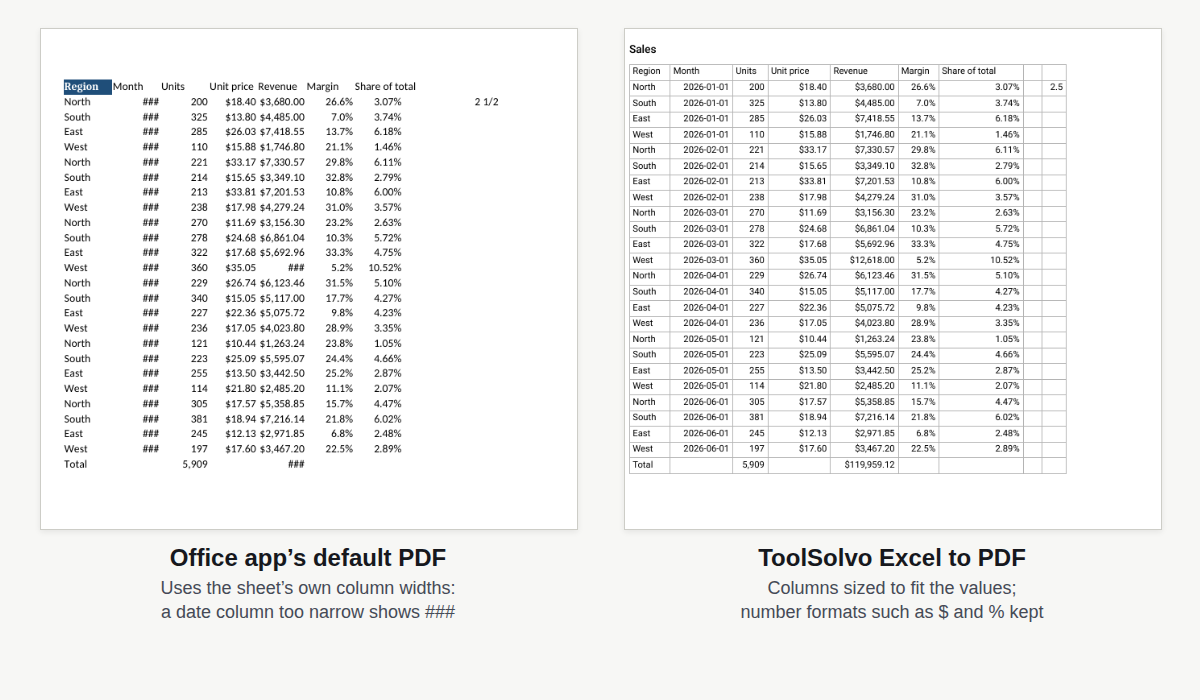
Both problems on the left are fixed in the office app by widening the columns and setting Fit to before saving, as described above.
Check the PDF before you send it
- No ### anywhere, and no columns on pages of their own.
- Totals and percentages show as you expect, not as long decimals.
- Headings at the top of each page, for long sheets.
- Text is large enough to read when printed.
- Only the sheets you meant to share are included.
Common questions
How do I fit an Excel sheet on one page in a PDF?
Set Page Setup › Fit to 1 page wide by 1 page tall before you save the PDF, and choose landscape for a wide sheet. On a large sheet the text can become very small, so 1 page wide by several pages tall is often easier to read.
Why does my PDF show ### instead of numbers?
The column is too narrow for the number or date, so the sheet itself shows ###. Widen the column in Excel before saving the PDF. ToolSolvo’s converter sizes columns to the values, so it does not show ###.
Can I convert all the sheets of a workbook into one PDF?
Yes. In ToolSolvo, keep All visible sheets: each sheet starts on a new page under its name. Google Sheets offers Workbook in its print options.
Can I convert an old .xls file?
Not with ToolSolvo, which reads .xlsx only. Open the .xls file in Excel and save it as an Excel Workbook (.xlsx) first, or save the PDF directly from Excel.
Can I turn a PDF back into Excel?
Yes, if the PDF has selectable text. See how to convert a PDF to Excel.
Sources
- Microsoft Support: Save or convert to PDF or XPS in Office desktop apps — Excel’s File › Save As › PDF steps, Standard and Minimum size, Options; links inside the workbook are lost in the PDF.
- Microsoft Support: Fit to one page in Excel — Page Layout › Page Setup › Page › Fit to.
- Google Docs Editors Help: Print from Google Sheets — File › Print; Current sheet, Workbook or Selected cells; orientation; PDF in Chrome, Firefox and Safari.
- LibreOffice Help: Export as PDF — File › Export As › Export as PDF.