Guide
How to Convert a PDF to Excel and Extract Tables
A PDF does not know that its table is a table: it only records where each word sits on the page. Converting it to Excel means rebuilding rows and columns from those positions. This guide shows how to do that with ToolSolvo’s PDF to Excel, which kinds of PDF and table come through cleanly, and what to fix by hand when they do not.
Published
Check that your PDF contains text
Open the PDF in any PDF reader and try to highlight a single number in the table. If you can, the PDF has a text layer and can be converted. If the whole page highlights as one block, or nothing highlights, the page is a scan or a picture, and there is no text for a converter to place in cells.
The PDFs that convert best are the ones a program made directly: bank and card statements downloaded from online banking, reports exported from accounting or school software, invoices, and tables saved from Excel or a web page. Each row is on one line and the columns are separated by clear gaps.
Step by step
- Open PDF to Excel and choose or drop the PDF. Password-protected PDFs must be unlocked in your PDF reader first.
- Under Pages, keep All pages, or choose Choose pages and type pages and ranges in Pages to convert, for example
2-4, 7. - Under Sheets, choose One sheet per page or All pages on one sheet.
- Click Convert to Excel. A progress line shows which page is being read, and you can cancel.
- When you see “Your Excel workbook is ready”, use Page to preview to look through the rows and columns of each page.
- Download the .xlsx file and open it in Excel, LibreOffice Calc or Google Sheets.
The PDF is read in your browser rather than uploaded, so the time it takes depends on your device. Up to 200 pages can be converted in one run; convert a longer PDF in two or more ranges.
Pages, preview and sheets
| Option | What it does | Use it when |
|---|---|---|
| All pages | Reads every page | The whole PDF is one table, or a short document |
| Choose pages | Reads only the pages and ranges you type; the tool counts them before you convert | The table is on a few pages of a longer report |
| One sheet per page | Each page gets its own sheet, named Page 1, Page 2 and so on | Pages hold different tables, or you want to check page by page |
| All pages on one sheet | Pages follow each other on a sheet called All pages, with an empty row between them | One long table runs across several pages, such as a statement |
| Preview | Shows the rows and columns of each converted page, with its row and column count | Always, before you download |
If a long table repeats its header row on every page, All pages on one sheet keeps those repeated headers and the empty rows between pages. Filter them out in Excel, or delete them, before you sort or total the column.
What ends up in the cells: a tested example
On 1 October 2026 we converted a four-page sample PDF, made for the test, on a local build of ToolSolvo in desktop Chromium. Page 1 was a simple statement table; page 2 had a heading spanning three columns and a cell wrapped onto two lines; page 3 was text set in two columns with a rotated side label; page 4 was a scanned image.
With all pages and one sheet per page, the tool reported “3 pages converted into 27 rows on 3 sheets”, said page 4 had no selectable text and was not in the workbook, and said rotated text on page 3 was left out.
| In the PDF | In the Excel cell | Why |
|---|---|---|
| 1,250.00 | 1250, a number | Plain amounts become numbers you can add up |
| 45.20 | 45.2, a number | Excel does not show the trailing zero unless you format the column |
| 2026-03-01 | 2026-03-01, as text | Dates are kept exactly as they appear rather than guessed |
| 2.5% | 2.5%, as text | Amounts with a percent or currency sign are kept as text |
| Account no. 00123456 | Unchanged, in one cell | Text with leading zeros is never turned into a number |
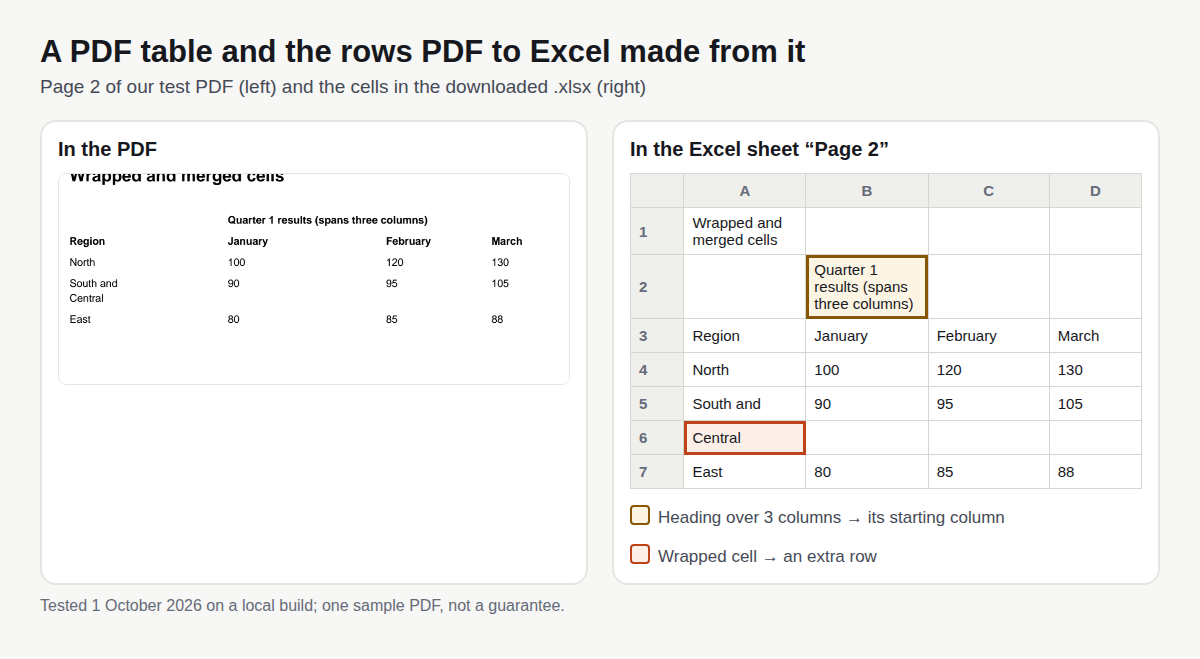
The numbers on page 2 stayed on the first line of the wrapped row (South and, 90, 95, 105), so only the word “Central” needed moving back. On page 3, each row of the sheet held one line from the left column and the line beside it from the right column, so the text was no longer in reading order. No request carried the PDF’s data out of the browser during the test.
What does not convert well
- Scanned pages. They have no text, so they are left out and listed. This tool does not do OCR (text recognition).
- Text wrapped onto several lines inside one cell. Each line becomes its own row.
- Merged cells and headings that span columns. The text goes into the column where it starts; the other columns stay empty.
- Text in two or more columns, and pages with several tables of different widths. Rows and columns are rebuilt from where text lines up, so these can come out mixed or misaligned.
- Rotated or vertical text. It is left out, and the tool tells you which page had it.
- Formatting and structure. Fonts, cell colours, borders, merged-cell structure and formulas are not kept; totals arrive as plain values.
Very long numbers, such as 16-digit card or reference numbers, are worth checking in any PDF-to-Excel result: Excel stores numbers with 15 digits of precision1, so a long identifier only stays exact as text.
Scanned PDFs
If every page you choose is a scan, the tool shows “No selectable text found” instead of a workbook. You then have two options, neither of which produces a ready-made table:
- Read the text with OCR, then build the table yourself. Image to Text (OCR) recognises the words and numbers on a scan and gives you plain text to copy or download as .txt. It does not create rows and columns, so you paste or type the values into a sheet and check every figure. The OCR guide explains how to get a cleaner scan and what to proofread.
- Ask for the original. A bank, school or supplier can often send the same report as a downloadable PDF, CSV or Excel file, which is more reliable than any conversion.
If only some pages are scans, the rest still convert: the tool lists the skipped pages so you know which ones to handle separately.
Tidying the workbook in Excel
- Compare totals. Add up an amount column with SUM and compare it with the total printed in the PDF. It is the quickest way to spot a missing or misplaced row.
- Fix wrapped rows. Move the extra line back into the cell above, for example by typing the full text, then delete the empty row.
- Move spanning headings. Cut the heading into the cell you want, or delete it if it is only a label.
- Convert text dates if you need to calculate with them. Dates arrive as text so they are not misread; Excel’s Text to Columns (on the Data tab) can turn a column of them into real dates.
- Add formatting back. Number formats, column widths and borders are quick to apply once the values are right.
If you only need part of a long PDF, take those pages out first with Split PDF. If the PDF is mostly paragraphs rather than tables, PDF to Word is the better tool; see how to convert PDF to Word. To pass the result to another program as CSV, the CSV and Excel guide explains what changes.
Common questions
Can I convert a PDF to Excel without losing formatting?
No converter can rebuild a spreadsheet exactly from a PDF, because the PDF does not store rows, columns or formulas. ToolSolvo’s PDF to Excel gives you the table’s text and numbers in cells; colours, borders and formulas are not kept.
Can I get a CSV file instead of .xlsx?
PDF to Excel downloads an .xlsx workbook. To get CSV, convert the sheet you need with the Excel and CSV Converter.
Why is a page missing from my workbook?
That page had no selectable text, usually because it is a scan, or it could not be read. The tool lists such pages above the preview.
Sources
- Microsoft Support: Excel specifications and limits — Excel stores numbers with 15 digits of precision; a worksheet has up to 1,048,576 rows and 16,384 columns.