Guide
Why Images Save as WebP, and How to Convert Them to JPG or PNG
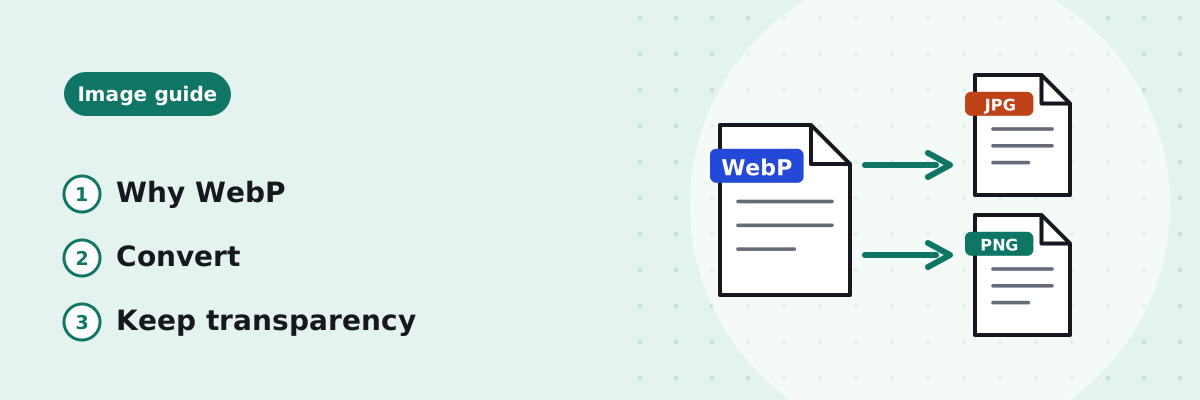
You save a picture from a website and it arrives as a .webp file that your form, editor or printer will not accept. This guide explains why that happens, how to convert WebP to JPG or PNG in a couple of steps, and which of the two to pick.
Published
Why images save as WebP
WebP is an image format designed for the web. It is usually smaller than JPG or PNG for the same picture2, so pages load faster, and web developers are encouraged to use it1. Many websites therefore send WebP images to browsers that support them. When you right-click and save, you get the file the website actually sent, which is often WebP, even if the address or the image looked like a JPG.
Nothing is wrong with the file. The problem is only that some upload forms, older programs and printing services still expect JPG or PNG.
Convert to JPG or PNG?
| The WebP is… | Convert to | Why |
|---|---|---|
| A photo | JPG | Small enough and accepted almost everywhere |
| A logo, icon or cut-out with a transparent background | PNG | JPG has no transparency; the background would be filled with a colour |
| A screenshot, chart or image with text | PNG | Keeps text and lines sharp |
| Going into a form that says “JPG only” | JPG | Then check the size limit in KB |
How to convert WebP to JPG or PNG
- Open the Image Converter. On a phone, open it in the browser; there is nothing to install.
- Add the WebP file, or up to 20 at once.
- Choose JPG or PNG. For JPG, pick the colour for any transparent areas (white by default) and, if you like, the quality (90% by default).
- Click Convert to JPG or Convert to PNG, then download each image.
If the converted file is too large for a form, reduce it with the Image Compressor, which lets you set a target size in KB.
Other ways: Preview on a Mac
If your Mac opens the WebP in Preview, you can also choose File › Export and pick JPEG or PNG from the Format menu. Preview can export several images at once if you open them in one window and select them in the sidebar3.
What to avoid
- Renaming .webp to .jpg. This changes only the name, not the format inside, so many forms and programs will still reject it or show an error.
- Installing a “converter” from an unknown site. Fake converters have been used to spread malware; see Are online file tools safe?
- Converting to JPG when you need transparency. Use PNG instead.
Common questions
Why is my converted JPG bigger than the WebP?
WebP compresses more efficiently than JPG and PNG, so the same picture usually needs more bytes in the older formats. In our test, a 45 KB WebP became a 103 KB JPG and a 379 KB PNG.
Does converting WebP to JPG lose quality?
Saving as JPG compresses the image again, so a little detail can be lost; at 90% quality this is rarely visible in photos. Converting to PNG loses nothing further, but the file is larger.
Can I convert many WebP images at once?
Yes, up to 20 at a time in the Image Converter, each downloaded separately.
How do I open a WebP file?
Modern browsers open WebP images directly: drag the file into a browser window. To edit or upload it somewhere that does not accept WebP, convert it first.
Sources
- MDN Web Docs: Image file type and format guide — WebP offers better compression than JPEG and PNG and is recommended for the web, with PNG or JPEG as a fallback; JPEG has no transparency.
- Google for Developers: An image format for the Web (WebP) — WebP files are smaller than comparable PNG and JPEG files and support transparency.
- Apple Support: Convert image file types using Preview on Mac — File › Export with a choice of format, and converting several images at once.