Guide
JPG vs PNG vs WebP: Which Image Format Should You Use?
JPG, PNG and WebP store pictures in different ways, and choosing the wrong one gives you a blurry logo, a huge file, or a white box where transparency should be. Here is what each format is for, what we measured when converting between them, and a quick way to decide.
Published
The three formats at a glance
| Feature | JPG | PNG | WebP |
|---|---|---|---|
| Compression | Lossy: some detail is discarded | Lossless: every pixel kept | Lossy or lossless |
| Transparency | No | Yes | Yes |
| Best for | Photos | Screenshots, logos, text, diagrams | Web images of all kinds |
| Typical size for a photo | Small | Very large | Smallest |
| Accepted by forms and older software | Almost everywhere | Very widely | Not everywhere |
MDN, Mozilla’s reference for web developers, recommends JPEG for photos and advises against it for screenshots, diagrams and text, because blurring and coloured fringes around sharp edges are very visible; it recommends PNG (lossless) for those, and WebP for good compression on the web1.
What we measured
On 1 October 2026 we converted two sample images with ToolSolvo’s Image Converter at its default quality of 90%: a 3000 × 2000 pixel photo-like landscape saved as a JPG, and a 1200 × 800 PNG graphic with flat colours, text and a transparent background.
| Image | JPG | PNG | WebP |
|---|---|---|---|
| Photo, 3000 × 2000 | 498 KB (original) | 4.9 MB | 128 KB |
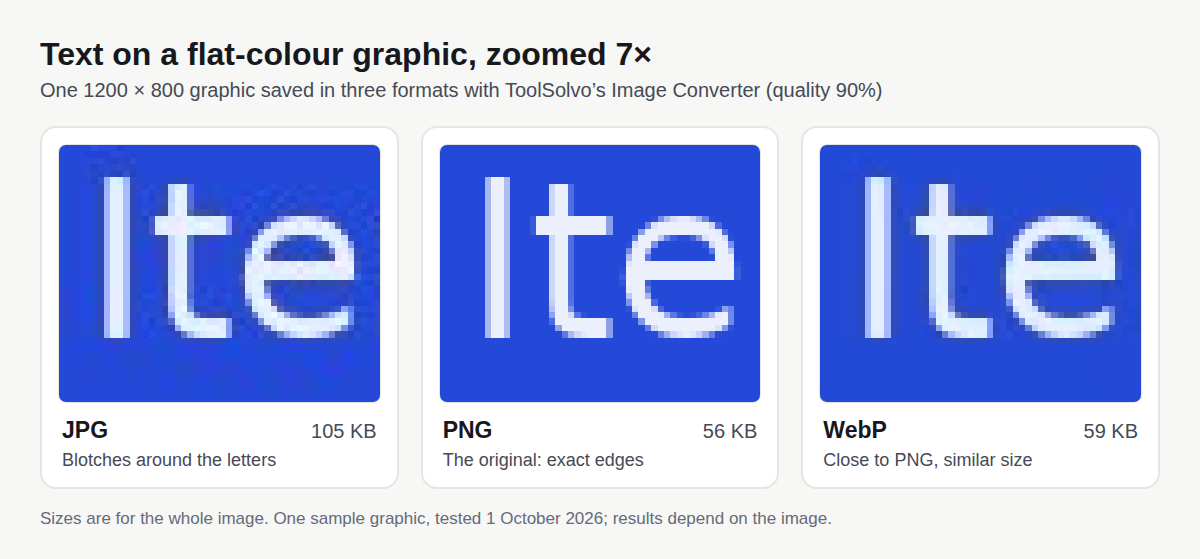
| Graphic with text and transparency, 1200 × 800 | 105 KB, transparency filled white | 56 KB (original) | 59 KB, transparency kept |
- The photo as PNG was about 10 times the size of the JPG, with no visible improvement: PNG cannot recover detail the JPG had already discarded.
- The graphic as JPG was almost twice the size of the PNG, and worse: see the zoomed comparison below. JPG is not automatically “the small format”.
- WebP was the smallest or close to it in both cases, and it kept the graphic’s transparency. Google reports WebP lossless files as 26% smaller than PNG and lossy WebP as 25–34% smaller than comparable JPEGs2; our single test is in line with that direction, not proof of the numbers.
How to choose, in four questions
- Does the place you are sending it require a format? Many application and government forms accept only JPG. If a form says JPG, use JPG and check its size limit (see the photo and signature guide).
- Does the image need a transparent background? A logo placed on coloured backgrounds, or a cut-out product photo: use PNG, or WebP for a website. Never JPG.
- Is it mostly text, lines or flat colour? Screenshots, charts, scanned forms you want to stay crisp: PNG.
- Is it a photo? JPG for sharing and forms; WebP if it is going on your own website.
Saving a JPG again loses a little more each time
JPG’s compression is lossy, so each time an image is edited and saved as a new JPG, some more detail is discarded. For photos you will edit several times, keep the original and save a JPG only for the final copy. Converting a JPG to PNG stops further loss but does not bring back what was already lost.
What happens to transparency when you convert
- PNG or WebP → JPG: transparent areas must be filled with a solid colour. ToolSolvo’s Image Converter fills them with white by default, lets you choose another colour, and tells you when it happened (in our test: “Transparency was filled in”).
- PNG → WebP, or WebP → PNG: transparency is kept.
- JPG → PNG or WebP: there is no transparency to keep; to remove a background, use the Background Remover, which outputs a transparent PNG.
How to convert between formats
- Open the Image Converter and add up to 20 JPG, PNG or WebP images at once.
- Choose JPG, PNG or WebP. For JPG and WebP you can set the quality; for JPG, choose the colour for transparent areas.
- Convert, then download each image. The pixel size stays the same, phone photos are turned the right way up, and location and camera details are not copied.
To make a photo smaller in KB rather than change its format, use the Image Compressor; to change its width and height, use the Image Resizer. HEIC photos from iPhones are not accepted; see how to get JPGs from an iPhone.
Common questions
Is JPG or PNG better quality?
PNG keeps every pixel exactly, so it is never worse than the image you give it. JPG discards some detail to make files smaller; for photos this is usually invisible at quality 80–90%, but on text and sharp edges it can show.
Which is better for printing, JPG or PNG?
For photos, a high-quality JPG is normally fine and much smaller. For text, logos and line art, PNG keeps edges sharp. What matters most for print is enough pixels for the print size; the photo size guide explains pixels and print size.
What is a WebP file?
An image format from Google designed for the web. It can be lossy or lossless, supports transparency, and is usually smaller than JPG or PNG2. If a program or form will not open a WebP, convert it to JPG or PNG.
Is JPEG different from JPG?
No. Both extensions mean the same format; .jpg became common because older systems such as MS-DOS limited file extensions to three letters.
Sources
- MDN Web Docs: Image file type and format guide — JPEG is lossy with no transparency and suits photos, not screenshots or text; PNG is lossless with transparency; WebP supports lossy, lossless and transparency.
- Google for Developers: An image format for the Web (WebP) — WebP lossless is 26% smaller than PNG; lossy WebP is 25–34% smaller than comparable JPEGs; transparency is supported.