Guide
How to Split a PDF or Extract Only the Pages You Need
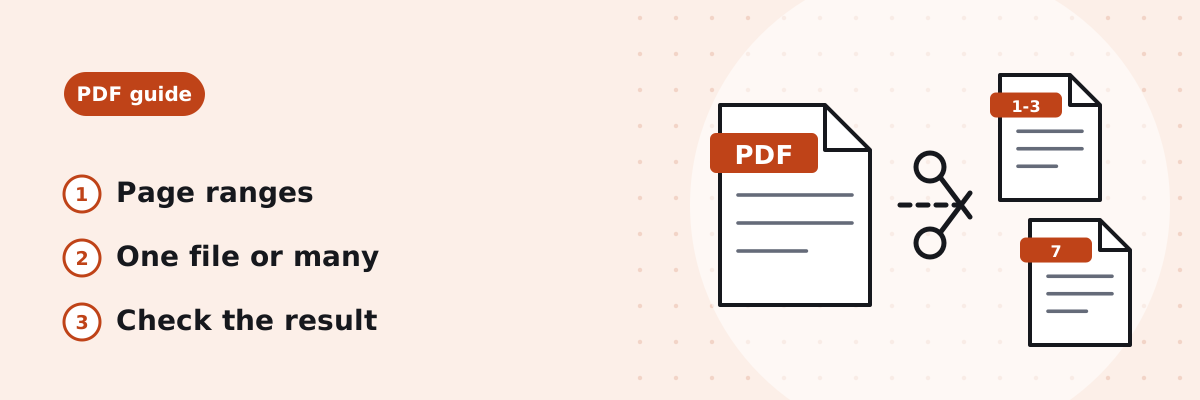
Splitting a PDF means taking some of its pages into a new file, or cutting it into several files. This guide explains the two ways to split, how to type page ranges, how to split a large PDF to get under an upload limit, and what to check afterwards.
Published
Two ways to split a PDF
| Mode | You type | You get |
|---|---|---|
| Extract into one PDF | 5, 1-2 | One new PDF with page 5, then pages 1 and 2 (3 pages) |
| One PDF per range | 1-3, 4-6, 7-10 | Three PDFs: pages 1–3, pages 4–6 and pages 7–10 |
Use Extract into one PDF when you need only some pages, for example the two pages of a contract that need signing, or the certificates from a long application pack. Use One PDF per range to break a long document into parts, such as chapters or one file per student.
How to type page ranges
- Separate pages and ranges with commas: 1-3, 7, 10-12.
- A range includes both end pages: 4-9 means pages 4, 5, 6, 7, 8 and 9.
- In Extract into one PDF, pages keep the order you type, so 5, 1-2 puts page 5 first. This is a quick way to reorder pages too.
- You can also click page numbers instead of typing, or use Select all and then remove the pages you do not want.
- The tool checks your selection as you type. If you type a page that does not exist, it says so, for example “Page 12 does not exist. This PDF has 10 pages.”
Step by step
- Open the Split PDF tool and choose your PDF (up to 200 MB). Password-protected PDFs must be unlocked in your PDF reader first.
- Choose Extract into one PDF or One PDF per range.
- Type the pages in Pages to keep, or click them in the page grid.
- Click Split PDF and download the new file or files.
- Open each file and check the first and last page.
Splitting to get under an upload limit
If a portal accepts files of up to, say, 5 MB and your PDF is 12 MB, splitting it into parts is often simpler than compressing it, and keeps full quality. Split it with One PDF per range, check each file’s size, and adjust the ranges if one part is still too big. If the portal allows only one file, try Compress PDF instead; the compression guide explains the options.
What carries over
- Pages: copied exactly, so text stays selectable and images keep their quality.
- Bookmarks and fillable form fields: may not carry over, because they belong to the document rather than to individual pages. Fill in forms before splitting.
Other ways: Preview on a Mac
On a Mac, Preview can also make a new PDF from some pages: show the thumbnails, select the pages and drag them from the sidebar to the desktop. You can delete pages by selecting them and pressing Delete1. Split PDF works the same way on a Mac, Windows PC or phone, and lets you type ranges for long documents.
Common questions
How do I extract one page from a PDF?
Type just that page number, for example 7, choose Extract into one PDF, and split. You get a one-page PDF.
How do I split every page into a separate file?
Choose One PDF per range and type each page as its own range, for example 1, 2, 3, 4. Each becomes a separate one-page PDF.
How do I put split pages back together?
Use Merge PDF. The merge guide explains how to get the order right.
Can I turn the pages into images instead?
Yes, with PDF to JPG, which can convert all pages or a range such as 1-3. See how to convert a PDF to JPG.
Sources
- Apple Support: Add, delete or move PDF pages in Preview on Mac — deleting pages from the thumbnails, and dragging thumbnails to the desktop to create a new PDF.